Onepage AI 2.0
You're ready to go!
Log into Onepage
Log into your new or existing account on app.onepage.io, in case you're logged out.
Start vibe coding
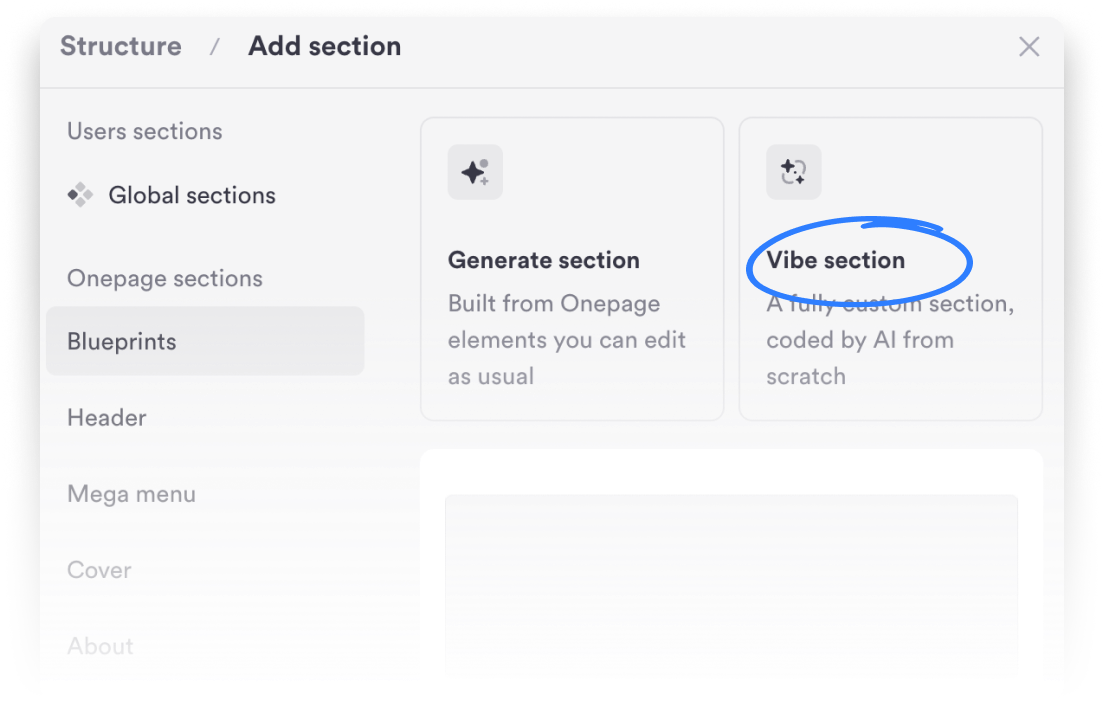
Starting now, you can use the Vibe Coding feature on any existing or newly created page. To do so, simply create a new section and select "Vibe Section". Want some more info? Look at our help center and the prompting guide!
Optional: Build directly inside Claude & Co.
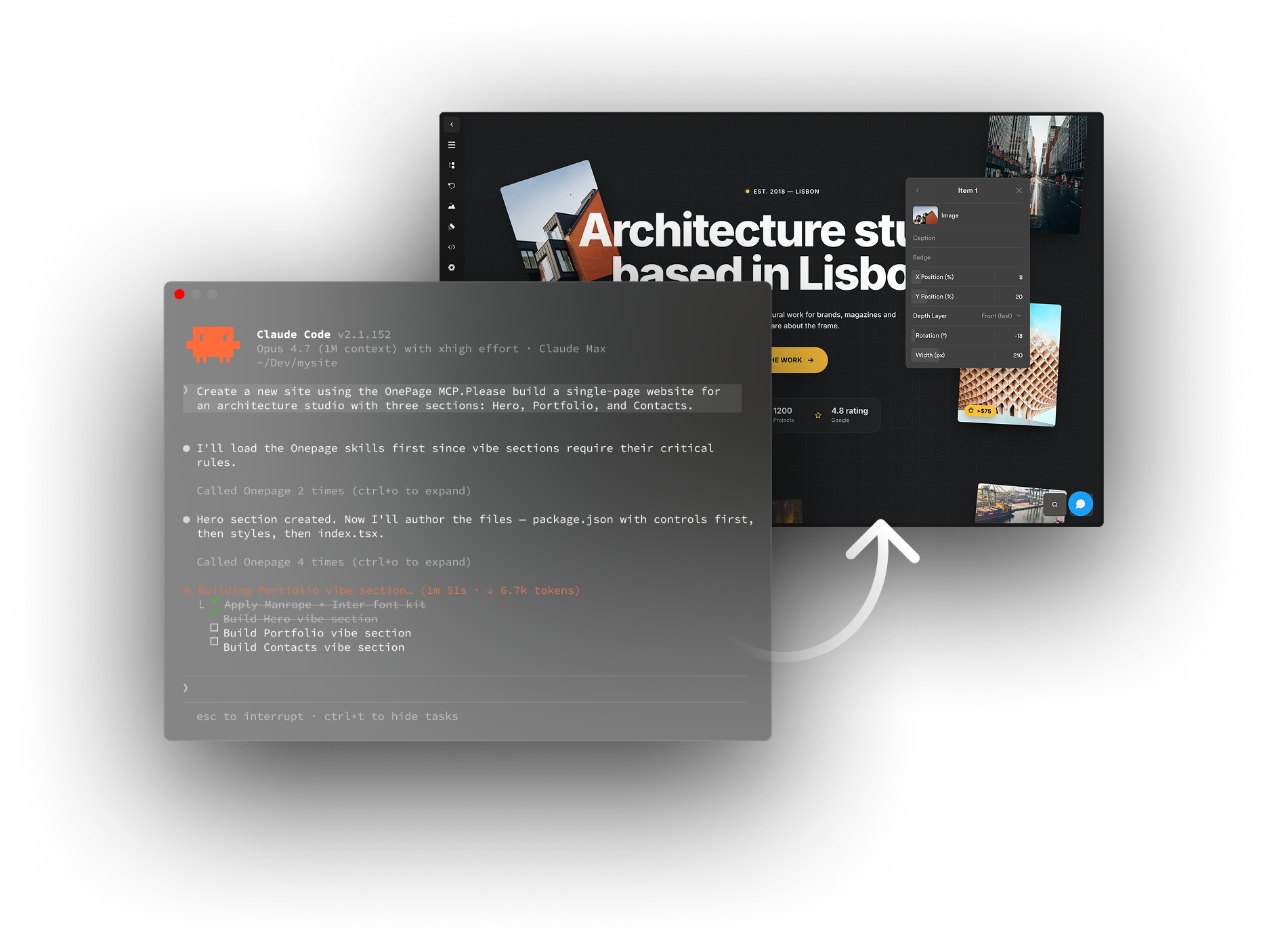
Are you already successfully using AI coding assistants like Claude, Cursor, and others? Then connect to the Onepage MCP and create pages seamlessly within your favorite tool. This way, you can have entire pages generated instead of working section by section. You can find instructions on how to connect the MCP in our help center:
Optional: Book an onboarding call with our team
Do you have questions about Onepage AI 2.0 that we can help you with, or would you like a walkthrough of the new features? If so, we'd be happy to go through them with you in a personal conversation. Simply set up an appointment with our team: